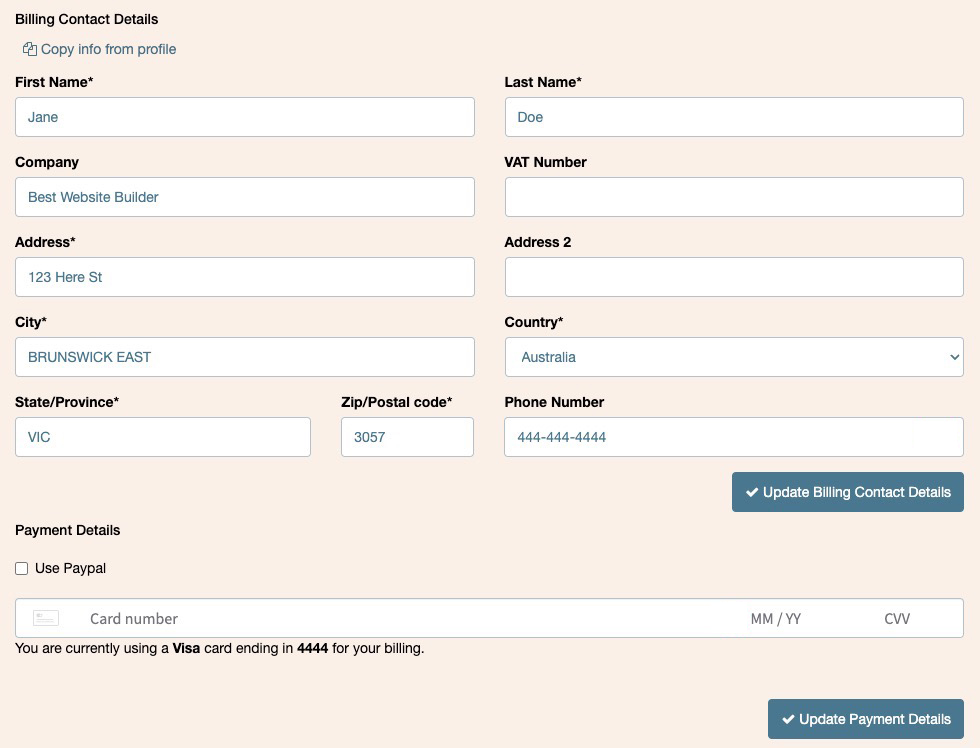
You can update your billing contact details and payment method from the Billing settings area in your Watchful account.
The information entered here is used for your Watchful billing records and appears on your invoices. This includes your company name, billing address, and VAT number when applicable.
You can also use this page to change how you pay for Watchful, including switching between a credit or debit card and PayPal.
Update your billing contact details
To change the information that appears on your Watchful invoices:
- Log in to your Watchful account.
- Click your name in the top-right corner of the Watchful interface and select
Billing settings. - In
Billing Contact Details, update any of the following fields as needed:First NameLast NameCompanyVAT NumberAddressAddress 2CityCountryState/ProvinceZip/Postal codePhone Number
- Click
Update Billing Contact Details.
You can also use Copy info from profile to populate the billing form with information from your Watchful profile.
Your saved billing contact information will be used on future Watchful invoices. If your organization requires a VAT number to appear on its invoices, enter it in the VAT Number field before saving your changes.
Update your credit or debit card
Your current payment method is displayed in the Payment Details section.
If you are paying by card, Watchful shows the card type and the last four digits of the card currently on file.
To replace it:
- Log in to your Watchful account.
- Click your name in the top-right corner of the Watchful interface and select
Billing settings. - Scroll to
Payment Details. - Make sure
Use Paypalis not selected. - Enter the new credit or debit card number.
- Enter the card expiration date and CVV.
- Click
Update Payment Details.
The new card will then be used for future Watchful payments.
Switch from a credit or debit card to PayPal
You can also change your payment type directly from this page.
To switch to PayPal:
- Log in to your Watchful account.
- Click your name in the top-right corner of the Watchful interface and select
Billing settings. - Scroll to
Payment Details. - Enable
Use Paypal. - Click
Update Payment Details. - Follow the PayPal prompts to sign in and approve the billing agreement.
Once completed, PayPal will be used for future Watchful payments.
If you need help changing an existing PayPal billing agreement, please review the details here.
Keep your invoice details up to date
If your company name, address, VAT number, or other billing information changes, update it in Billing Contact Details before your next invoice is generated.
This helps ensure that future invoices contain the correct billing and tax information.