What to do if your WordPress or Joomla site has been hacked
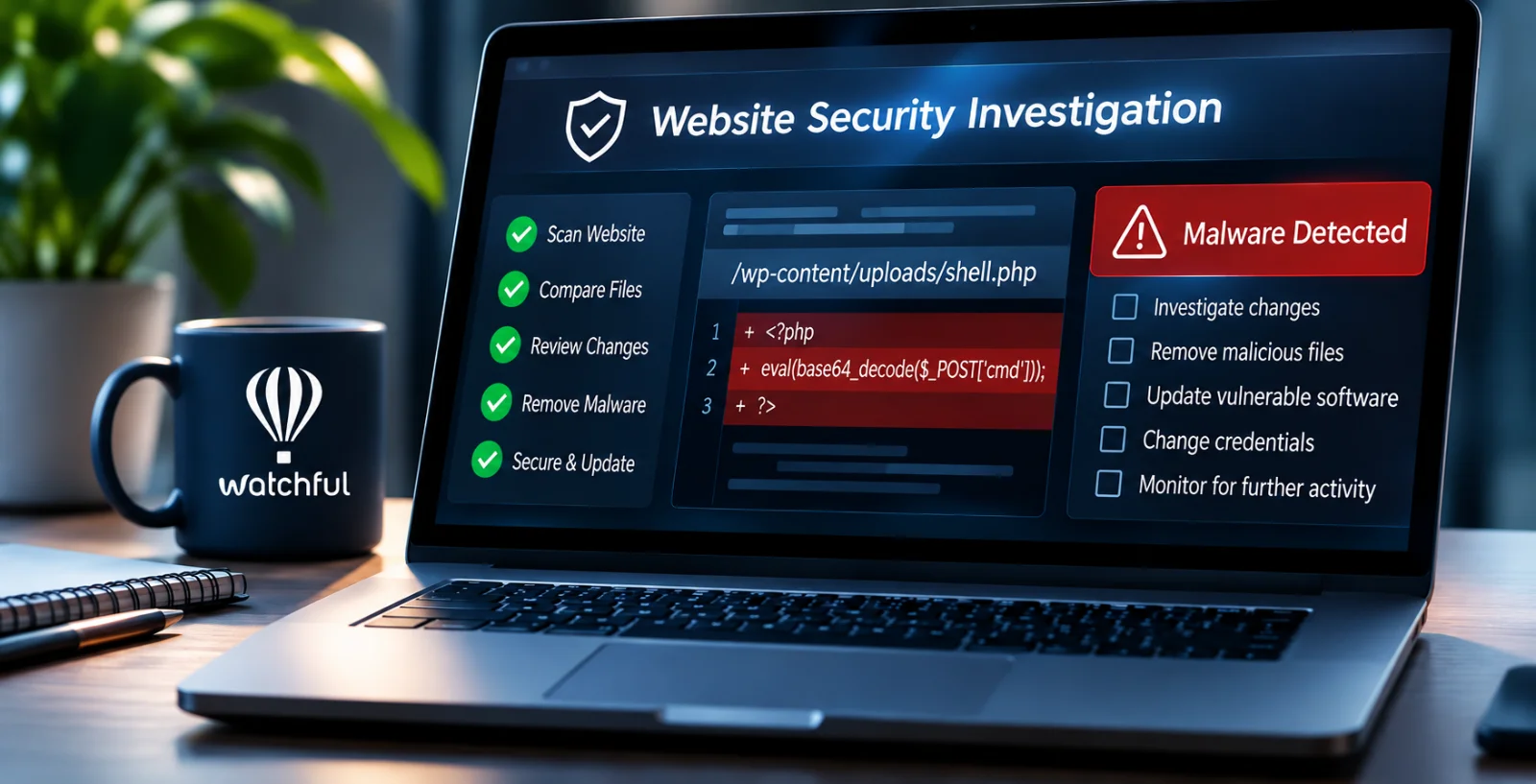
A hacked website can expose private data, send visitors to harmful websites, or give attackers access to your server.
If you suspect someone has hacked your WordPress or Joomla! website, act quickly. However, avoid deleting files before you understand the problem. Otherwise, you may lose valuable clues or overlook the security flaw that allowed the attack.
This guide explains how to spot a possible hack, find harmful changes, clean your website, and prevent future attacks.
1. Check for signs of a hacked website
Not every unexpected file change means someone has hacked your website. For example, software updates and routine maintenance can change important files.
However, you should investigate changes that you cannot explain.
Common warning signs include:
- Unexpected changes to website files or settings.
- Unknown administrator accounts.
- Unusual redirects or unfamiliar website content.
- Suspicious PHP scripts or other files.
- Malware warnings from browsers or security tools.
- Unusual server activity or unexpected traffic.
First, ask anyone with access to your website whether they made recent changes. This includes developers, administrators, contractors, and hosting providers.
Next, review any security alerts.
If you use Watchful, the Early Warning Audit can detect changes to key website files. In addition, the Vulnerability Scanner can help find malware and known security flaws.
Keep in mind that an alert does not always mean your site has been hacked. Even so, you should investigate any change that you cannot explain.
For more help, see Respond to an unexpected file change alert.
2. Limit access to your website
If you find signs of a hack, consider limiting public access while you investigate.
For example, you can:
- Protect the website with a password using HTTP authentication (HTPASSWD).
- Allow access only from trusted IP addresses.
- Use security controls from your hosting provider.
However, a basic maintenance page may not stop attackers from accessing harmful scripts. Therefore, use server-level access controls whenever possible.
If your website handles customer details, payments, or other private data, act quickly to protect that information.
Also, avoid changing or deleting files before you save evidence that may help you understand the attack.
3. Back up your website before making changes
Before you start cleaning your website, create a full backup.
Make sure it includes:
- All website files and folders.
- The website database.
- Important server settings.
- Available server and website logs.
Next, store the backup in a safe place outside the affected server.
This backup gives you a record of the website before cleanup. However, it may contain malware or other harmful changes.
Therefore, do not treat it as a clean backup that you can safely restore.
Instead, keep it as a reference while you investigate.
4. Compare your website with earlier backups
Comparing your website with older backups can help you find suspicious changes and narrow down when they occurred.
Start by comparing your current website with the most recent backup that you believe is clean.
Use a file comparison tool, also called a DIFF tool, to find files that have changed.
Focus on:
- Core WordPress or Joomla! files.
- The main configuration file.
- Plugins, extensions, themes, and templates.
- Unexpected PHP files in upload or media folders.
- Server settings, including
.htaccess. - New or changed scripts.
Next, review any changes that seem unusual.
If you find suspicious files, compare your website with older backups as well.
For example, suppose a suspicious file appears in Monday’s backup but not Sunday’s. This suggests the file appeared during that period.
However, the attacker may have gained access before creating the file. As a result, file dates alone cannot confirm when the attack began.
5. Investigate suspicious files and activity
After you find unexpected changes, examine them carefully.
For PHP, JavaScript, HTML, and other text files, use a DIFF tool to compare the current file with an earlier version.
Look for:
- Unfamiliar or hidden code.
- Links to unknown websites.
- Scripts that run commands or accept remote input.
- Changes to login or access settings.
- Files that do not belong to your website software.
Next, check your website database for unknown administrator accounts, unwanted content, or unusual settings.
Also, review server logs if you have access to them. These logs may reveal unusual login attempts, file uploads, or requests linked to the attack.
Security scanners can help you find known malware. However, they may miss new or hidden threats.
Therefore, a clean scan does not always mean your website is safe.
Finally, never run suspicious scripts while investigating them.
6. Find and fix the security weakness
Removing malware is not enough. You must also find and fix the weakness that allowed the attack.
Otherwise, the attacker may regain access.
Common causes include:
- Outdated or vulnerable software.
- Stolen administrator or hosting passwords.
- Unsafe file permissions.
- Old CMS or PHP versions that no longer receive security updates.
- Security flaws in custom code.
- Unsafe third-party tools or services.
First, review the software installed on your website.
Next, update any software with known security flaws. If a plugin or extension no longer receives updates, consider replacing it.
Watchful’s Vulnerability Scanner can help you find known flaws in WordPress and Joomla! core software, plugins, and extensions.
However, finding a security flaw does not prove that an attacker used it. You may need server logs or other evidence to identify how the attack began.
If you cannot find the cause, contact your hosting provider or a website security expert.
7. Remove malware and restore clean files
Once you understand the damage, you can start cleaning your website.
Follow these steps:
- Remove harmful files, unknown accounts, and suspicious scheduled tasks.
- Replace affected CMS core files with clean copies from official sources.
- Reinstall affected plugins, extensions, themes, or templates from trusted sources.
- Restore clean website files and database content from a trusted backup when possible.
- Install security updates and fix unsafe settings.
- Change passwords for website administrators, hosting accounts, databases, FTP/SFTP, and SSH access if attackers may have gained access to them.
- Replace exposed API keys, revoke unsafe access tokens, and end active sessions where possible.
Be careful when restoring files. For example, copying files from an infected backup may bring the malware back.
If you have a clean backup, restoring it may be easier than removing malware by hand.
However, you must still fix the original security weakness before reopening your website.
8. Check your website before reopening it
Before you restore public access, make sure the website is safe and works as expected.
Check that:
- You have removed harmful files and unknown accounts.
- Your website software is up to date.
- You have changed any passwords or keys that attackers may have stolen.
- Website pages and administrator tools work correctly.
- Unwanted redirects and suspicious scripts are gone.
- Security scans and server logs show no further signs of an attack.
Next, test important website features, including forms, logins, and other tools your visitors use.
If everything works and you find no further signs of a hack, you can remove the temporary access limits.
However, if attackers may have accessed private customer data, check whether you must notify affected users or report the incident.
9. Block malicious requests with Cloudflare
Cloudflare includes a free firewall service that captures a vast array of requests that are sent to your server. As such, they offer an excellent defense against some of the most common website attacks on the internet.
By using Cloudflare as a proxy, you make it much, much more difficult for known threats to even reach your server and is a well-regarded addition to any website.
10. Monitor your website for new threats
After cleaning and securing your website, continue checking for suspicious activity.
For example, Watchful can help you:
- Detect unexpected changes to key website files.
- Find known software vulnerabilities.
- Scan for malware and other security threats.
- Receive alerts when supported security checks find problems.
In addition, follow these basic security practices:
- Keep regular backups in a safe location.
- Update your CMS, plugins, and extensions.
- Remove software that you no longer use.
- Limit administrator access to trusted users.
- Use strong passwords and multi-factor authentication where available.
- Review security alerts promptly.
These steps can reduce the risk of another attack. More importantly, they can help you detect new problems before they cause serious damage.
When to seek professional help
Some website attacks are difficult to investigate and repair.
Therefore, consider hiring a security expert if:
- You cannot find how the attacker gained access.
- Malware returns after cleanup.
- Several websites on the same server show signs of a hack.
- Attackers may have accessed private customer or payment data.
- You cannot tell which files are safe to keep.
A security expert can help you find hidden threats, fix server-level problems, and confirm that your website is safe to reopen.
Ultimately, the goal is not just to remove malware. You also need to fix the weakness that allowed the attack and protect your website from future threats.

0 Comments