How to enable HTTP Strict Transport Security (HSTS)

HTTP Strict Transport Security, usually abbreviated as HSTS, is a security header that tells web browsers to access your website using HTTPS only.
Once a browser receives an HSTS header from your website, future attempts to visit the site over HTTP are automatically upgraded to HTTPS. The browser will also refuse to let the visitor bypass certain certificate warnings while the HSTS policy is active.
A typical HSTS header looks like this:
Strict-Transport-Security: max-age=31536000; includeSubDomains
HSTS is relatively simple to configure, but it should only be enabled after HTTPS is working correctly across your website.
Why use HSTS?
Redirecting HTTP traffic to HTTPS is good practice, but a redirect still requires the browser to make an initial HTTP request.
HSTS allows a browser that has previously visited your website to skip that insecure request and connect directly using HTTPS. It also prevents visitors from bypassing certificate warnings for a domain covered by the HSTS policy.
Before enabling HSTS, make sure:
- Your website works correctly over HTTPS.
- Your SSL/TLS certificate is valid.
- HTTP requests are already redirected to HTTPS.
- Any subdomains you intend to protect also support HTTPS.
This last point is especially important if you plan to use the includeSubDomains option.
Make sure HTTPS is already enforced
HSTS should not be used as a replacement for an HTTP-to-HTTPS redirect.
The redirect and the HSTS header perform related but different jobs:
- An HTTPS redirect sends visitors who arrive over HTTP to the HTTPS version of the site.
- HSTS tells browsers that have already received the policy to use HTTPS automatically in the future.
Before enabling HSTS, confirm that visitors who request an HTTP URL are already being redirected to HTTPS.
Using Cloudflare
If your site is proxied through Cloudflare, the simplest approach is usually to enable Always Use HTTPS.
In Cloudflare:
- Select your website.
- Go to SSL/TLS.
- Open Edge Certificates.
- Enable Always Use HTTPS.
Cloudflare will then redirect HTTP requests to the equivalent HTTPS URL.
If Cloudflare is already handling this redirect, you generally do not need to create a second HTTP-to-HTTPS redirect in .htaccess.
Using Apache and .htaccess
If you are not using Cloudflare to enforce HTTPS and your website runs on Apache, you can usually add an HTTPS redirect to .htaccess.
For example:
RewriteEngine On
RewriteCond %{HTTPS} !=on
RewriteRule ^ https://%{HTTP_HOST}%{REQUEST_URI} [L,R=301]
This redirects HTTP requests to the same URL over HTTPS.
Hosting environments can differ, so use your host’s preferred HTTPS redirect method if one is provided.
Once HTTPS is working reliably and HTTP requests are being redirected, you can safely move on to configuring HSTS.
Understanding the HSTS header
The basic HSTS header contains a max-age value:
Strict-Transport-Security: max-age=31536000
max-age specifies, in seconds, how long a browser should remember to use HTTPS for the domain.
For example:
max-age=86400
means one day, while:
max-age=31536000
means one year.
You can also add:
includeSubDomains
which extends the policy to subdomains.
For example:
Strict-Transport-Security: max-age=31536000; includeSubDomains
Do not enable includeSubDomains unless all relevant subdomains can be accessed securely over HTTPS. Otherwise, browsers may refuse to connect to a subdomain that still relies on HTTP.
Option 1: Enable HSTS using Cloudflare
If your website is proxied through Cloudflare, HSTS can be enabled directly from the Cloudflare dashboard.
To enable it:
- Log in to Cloudflare.
- Select your website.
- Navigate to SSL/TLS → Edge Certificates.
- Find HTTP Strict Transport Security (HSTS).
- Click Enable HSTS.
- Read and accept Cloudflare’s warning.
- Configure the HSTS settings.
- Save your changes.
Cloudflare allows you to configure the maximum age, whether the policy applies to subdomains, and whether the domain should be eligible for HSTS preloading.
For a straightforward configuration, you might use:
Strict-Transport-Security: max-age=31536000
If every subdomain also supports HTTPS, you can additionally enable Apply HSTS policy to subdomains.
Be careful when changing Cloudflare later
After HSTS has been enabled, browsers may remember the policy for months.
If you later disable HTTPS, pause Cloudflare, switch a proxied DNS record to DNS-only, move the site elsewhere, or otherwise remove HTTPS support, browsers that have cached the HSTS policy may be unable to access the site.
If you need to disable HSTS, reduce the HSTS max-age to 0.
For example:
Strict-Transport-Security: max-age=0
Browsers must then successfully visit the site over HTTPS to receive the updated policy.
Option 2: Enable HSTS using Apache and .htaccess
If your website runs on Apache and your hosting environment allows HTTP headers to be configured using .htaccess, you can add the HSTS header there.
Add:
<IfModule mod_headers.c>
    Header always set Strict-Transport-Security "max-age=31536000"
</IfModule>
If all of your subdomains also use HTTPS, you can instead use:
<IfModule mod_headers.c>
    Header always set Strict-Transport-Security "max-age=31536000; includeSubDomains"
</IfModule>
The Apache mod_headers module must be enabled for this configuration to work.
If you are unsure whether your hosting environment supports mod_headers or permits these directives in .htaccess, contact your web host.
Note the multiple security headers like X-Frame-Options and CSP may be included in the same IfModule mod_headers.c configuration when using Apache.
Option 3: Enable HSTS using Nginx
For an Nginx web server, the header can normally be added to the HTTPS server configuration:
add_header Strict-Transport-Security "max-age=31536000" always;
If all subdomains support HTTPS:
add_header Strict-Transport-Security "max-age=31536000; includeSubDomains" always;
After updating the configuration, test the Nginx configuration and reload the server.
For example:
sudo nginx -t
sudo systemctl reload nginx
Your hosting provider or server-management platform may provide its own interface for adding custom response headers instead.
Option 4: Ask your web host
If you do not manage Cloudflare, Apache, Nginx, or your server configuration directly, your hosting provider may be able to enable HSTS for you.
Ask your host to add the following HTTPS response header:
Strict-Transport-Security: max-age=31536000
If you want HSTS to cover subdomains as well, confirm first that every affected subdomain supports HTTPS before asking them to add:
Strict-Transport-Security: max-age=31536000; includeSubDomains
Start with a shorter max-age when testing
HSTS is unusual because browsers remember the setting after leaving your website.
For a new configuration, you may therefore want to start with a shorter period such as:
Strict-Transport-Security: max-age=86400
This corresponds to one day.
Once you have confirmed that HTTPS works reliably, you can increase it to a longer value such as:
Strict-Transport-Security: max-age=31536000
Starting with a shorter max-age reduces the impact of a configuration mistake during an initial rollout.
What about HSTS preload?
You may also encounter an HSTS configuration like this:
Strict-Transport-Security: max-age=31536000; includeSubDomains; preload
The preload directive indicates that the domain is intended for inclusion in browser HSTS preload lists.
A preloaded domain is treated as HTTPS-only even when a visitor has never previously visited it.
However, preloading is a much stronger commitment than enabling a normal HSTS policy. Before considering it, all subdomains should support HTTPS and you should be confident that the domain will remain HTTPS-only.
Preload eligibility generally requires a long max-age and the includeSubDomains directive. Adding the preload directive to the header does not by itself add the domain to the preload list; the domain must also be submitted for inclusion.
For most website owners, it is sensible to establish a working HSTS configuration first and consider preloading separately later.
Verify the HSTS header
After enabling HSTS, check the HTTPS response from your website.
Using curl, run:
curl -I https://example.com
Look for a response similar to:
Strict-Transport-Security: max-age=31536000
or:
Strict-Transport-Security: max-age=31536000; includeSubDomains
You can also inspect the response headers using your browser’s developer tools.
The Strict-Transport-Security header should be returned with HTTPS responses. Browsers ignore an HSTS header delivered over plain HTTP.
It is also worth confirming the redirect separately:
curl -I http://example.com
You should see a redirect to the HTTPS version of the site.
How Watchful helps
HSTS depends on your website continuing to provide a working HTTPS connection.
As shown below, Watchful can monitor both the presence of the HSTS header and the health of your SSL certificate. Alerts then inform you of problems such as certificate expiration or hostname mismatches, helping you identify HTTPS problems before they affect visitors.
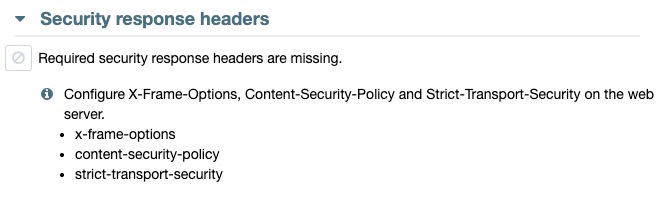
This is particularly important on sites using HSTS because browsers will not allow visitors to bypass certain SSL/TLS certificate errors while the HSTS policy is active.
Best practice
Enable HSTS only after confirming that your website works reliably over HTTPS and that HTTP traffic is already redirected to HTTPS.
Start with a shorter max-age if you are testing a new configuration, then increase it once you are confident the site will remain HTTPS-only. Enable includeSubDomains only when every affected subdomain supports HTTPS, and treat HSTS preloading as a separate, longer-term commitment.
For most established HTTPS websites, a configuration such as the following provides a practical starting point:
Strict-Transport-Security: max-age=31536000
You can then extend the policy to subdomains once you have verified that doing so will not make any existing services inaccessible.



0 Comments