How to add a basic Content Security Policy (CSP) header

Content Security Policy, usually abbreviated as CSP, is an HTTP response header that allows a website to tell browsers which sources and behaviors should be permitted when displaying its pages.
A complete CSP can control many different aspects of a website. However, you do not need to implement a complicated policy to benefit from it.
In this article, we will focus on one simple CSP directive:
Content-Security-Policy: frame-ancestors 'self';
This policy tells browsers that your pages may only be embedded inside a frame by pages from the same origin.
It is a useful, narrowly focused security measure for websites that do not need to be displayed inside frames on other websites.
What does frame-ancestors 'self' do?
The frame-ancestors CSP directive controls which websites are allowed to embed your pages using technologies such as <frame>, <iframe>, <object>, or <embed>.
Using:
frame-ancestors 'self';
means that only pages from your own origin are permitted to frame the page. Attempts by unrelated websites to embed it will be blocked by browsers that support the directive.
This can help protect against attacks where a malicious website attempts to display your site inside a hidden or disguised frame and trick a visitor into interacting with it.
The important thing to understand is that this is a deliberately limited CSP. It does not attempt to control JavaScript, stylesheets, images, fonts, or other resources.
For many site owners, that makes it a useful starting point because it provides a specific protection without requiring the testing involved in deploying a comprehensive Content Security Policy.
Option 1: Add the CSP header using Cloudflare
If your website is proxied through Cloudflare, you can add the CSP header at Cloudflare’s edge using a Response Header Transform Rule.
Cloudflare Response Header Transform Rules can add or replace HTTP response headers before the response is delivered to the visitor. The DNS record must be proxied through Cloudflare for Transform Rules to apply.
In the Cloudflare dashboard:
- Select your website.
- Go to Rules.
- Select Create rule → Response Header Transform Rule.
- Give the rule a descriptive name, such as
Content Security Policy. - Configure the rule to apply to all incoming requests.
- Under Modify response header, select Set static.
- Enter the following header name:
Content-Security-Policy
- Enter the following value:
frame-ancestors 'self';
- Save and deploy the rule.
Cloudflare’s Set static operation will set the header to the specified value, replacing an existing header with the same name if one is already present.
Once deployed, responses passing through Cloudflare should contain:
Content-Security-Policy: frame-ancestors 'self';
Avoid defining the same CSP in multiple places
If Cloudflare is setting your Content-Security-Policy header, you generally do not need to set the same header again on the origin server.
Choose one location to manage the policy whenever possible. This makes the configuration easier to understand and reduces the chance of accidentally delivering multiple or conflicting CSP headers.
Option 2: Add the CSP header using Apache and .htaccess
If your website runs on Apache and you are not setting the header through Cloudflare, you can usually add it using the site’s .htaccess file.
Add:
<IfModule mod_headers.c>
    Header always set Content-Security-Policy "frame-ancestors 'self';"
</IfModule>
This configuration checks that Apache’s mod_headers module is available and then adds the Content-Security-Policy header to responses.
The resulting header will be:
Content-Security-Policy: frame-ancestors 'self';
The always keyword helps ensure that the header is included with a wider range of HTTP responses rather than only successful responses.
After editing .htaccess, save the file and test the website. An invalid .htaccess directive can cause an Apache server error, so revert the change if the site stops responding normally.
If mod_headers is unavailable or your hosting provider does not allow header directives in .htaccess, contact your web host and ask them to add the header at the server level.
Note the multiple security headers like X-Frame-Options and HSTS may be included in the same IfModule mod_headers.c configuration when using Apache.
Option 3: Ask your web host
If you do not manage Cloudflare or have access to the web server configuration, your hosting provider can usually add the header for you.
Ask them to configure the following HTTP response header:
Content-Security-Policy: frame-ancestors 'self';
You can explain that you want the header returned across the website.
Your host may implement the policy using Apache, Nginx, a hosting control panel, or another server-level configuration.
Verify the CSP header
After adding the policy, confirm that your website is actually returning it.
One simple method is curl:
curl -I https://example.com
Look for:
Content-Security-Policy: frame-ancestors 'self';
You can also check the response headers using your browser’s developer tools.
Open the website, inspect the page using the browser’s developer tools, select the main document request in the Network panel, and inspect its response headers.
You should find:
content-security-policy: frame-ancestors 'self';
Header names are case-insensitive, so the capitalization shown by your browser may differ.
Make sure you are not blocking something you need
Before applying this policy, consider whether your website legitimately needs to appear inside an iframe on another domain.
For example, you may have an external service, portal, or application that embeds pages from your website.
With:
frame-ancestors 'self';
those external sites will no longer be permitted to frame your pages.
If your website does not need to be embedded by external domains, this restriction is usually exactly what you want.
How Watchful helps
Security response headers are easy to overlook because they are configured at the web server, CDN, or hosting level rather than through the CMS itself.
As shown below, Watchful’s vulnerability scanning can help identify security configuration issues across your websites, making it easier to spot sites that are missing recommended protections.
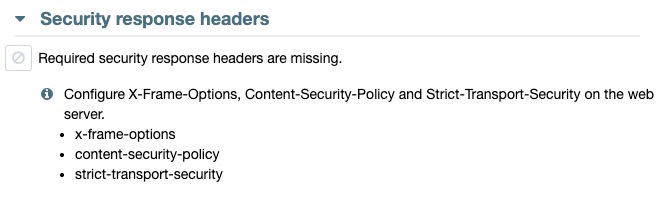
After adding the CSP header, rerun the vulnerability scan to confirm that the site’s security configuration has been updated.
Best practice
Content Security Policy can become extremely detailed, but it does not have to start that way.
If your immediate goal is simply to prevent external websites from framing your pages, this policy provides a clear and manageable starting point:
Content-Security-Policy: frame-ancestors 'self';
For Apache websites, the corresponding .htaccess configuration is:
<IfModule mod_headers.c>
    Header always set Content-Security-Policy "frame-ancestors 'self';"
</IfModule>
If you use Cloudflare, the same policy can instead be applied using a Response Header Transform Rule.
Whichever method you choose, configure the header in one place, verify the response after making the change, and confirm that your website does not rely on being embedded by an external domain.
Featured image prompt
Create an original, clean, modern technology-editorial illustration representing a Content Security Policy that prevents unauthorized websites from framing or embedding a protected website.
Use one strong visual metaphor: a clean central website or web page protected within a secure boundary, while an external frame or surrounding container is visibly prevented from enclosing or capturing it. Convey the idea that the website may remain within its own trusted boundary but cannot be framed by an outside source.
Use a restrained blue and teal palette, subtle depth, realistic lighting, and a professional SaaS/security aesthetic. Keep the composition uncluttered and easily understandable at thumbnail size. The mood should feel protective, controlled, and reliable rather than alarming.
No people, hackers, Matrix-style code, browser screenshots, dashboards, warning graphics, excessive padlocks, title text, slogans, decorative labels, or random code. Avoid showing unrelated security concepts such as HTTPS certificates, firewalls, passwords, or malware.
No text unless technically necessary.
Required dimensions: 1000 × 563 pixels.



0 Comments