How to remove the PHP version from WordPress HTTP headers
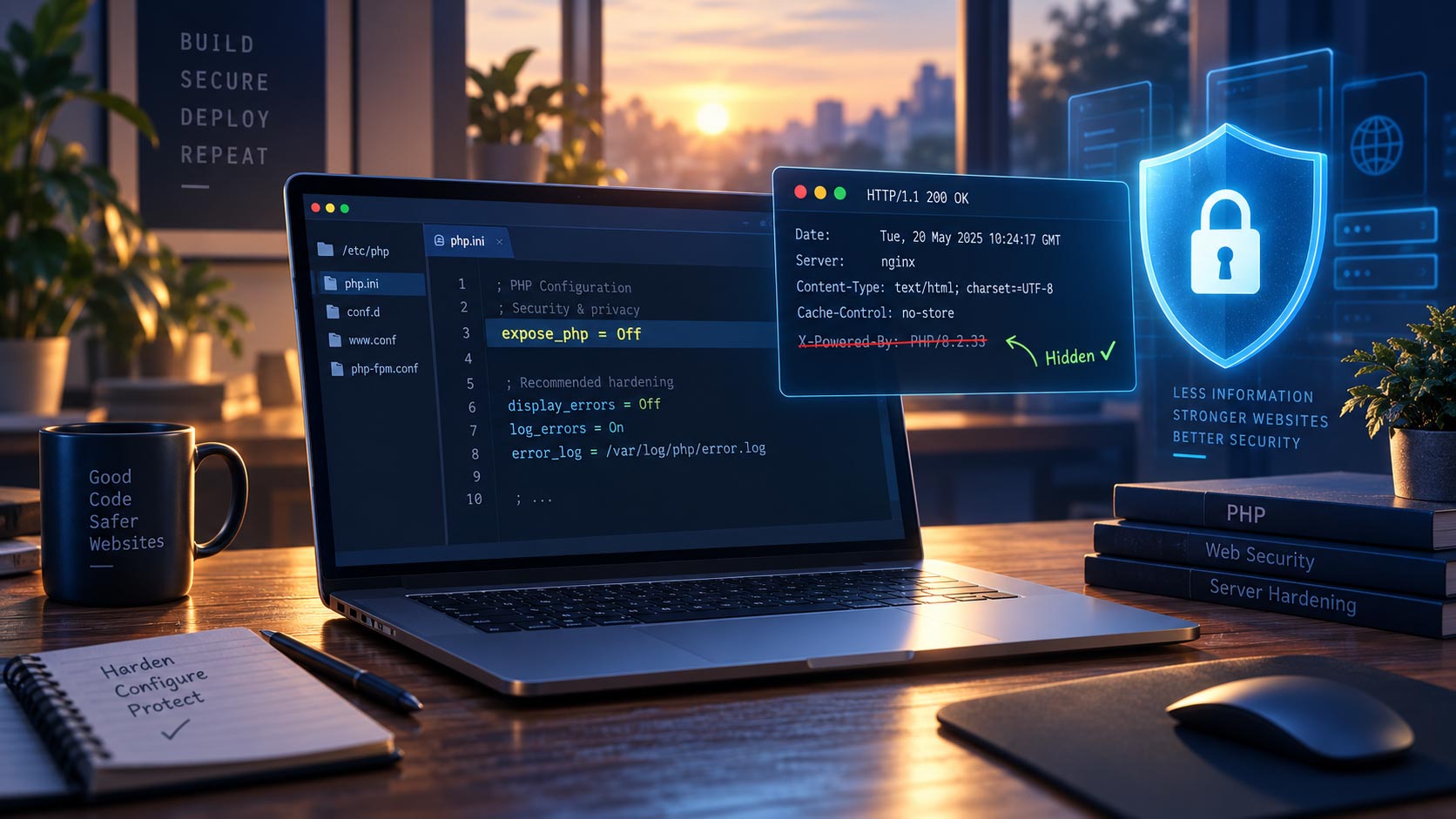
PHP is the programming language that powers WordPress. Depending on your server configuration, the exact version of PHP running your website may be included in its HTTP response headers.
For example, your server might return:
X-Powered-By: PHP/8.2.33
Visitors do not normally see HTTP response headers when browsing your website, but they are easy to inspect using browser developer tools, command-line utilities and website testing services.
There is usually no reason to expose the exact version of PHP running on your server. In this guide, we’ll look at three ways to remove this information and show you how to verify that the change worked.
Why hide the PHP version?
Exposing your PHP version does not create a vulnerability by itself.
However, it reveals unnecessary information about the software running your website. If a particular PHP release has a known vulnerability, exposing the exact version may help an attacker determine whether that vulnerability is worth targeting.
Removing this information is therefore a useful defense-in-depth measure: it reduces unnecessary information disclosure without affecting how your WordPress site works.
It’s important to keep this in perspective. Hiding your PHP version does not protect an outdated or vulnerable PHP installation. Keeping PHP updated remains much more important.
There are three common ways to remove detailed PHP version information from your HTTP response headers.
1. Disable expose_php
PHP includes a configuration directive called expose_php.
When this setting is enabled, PHP can identify itself in HTTP response headers, including the PHP version.
The preferred solution is to disable it:
expose_php = Off
This prevents PHP from adding its version information to the response rather than simply removing the resulting header later.
Using cPanel
If your hosting account provides access to the relevant PHP configuration:
- Log in to cPanel.
- Open Software → MultiPHP INI Editor.
- Select Editor Mode.
- Select the domain you want to configure.
- Find the
expose_phpdirective or add the following line if your hosting environment allows it:
expose_php = Off
- Save the changes.
The PHP settings available in cPanel depend on how your hosting provider has configured the server.
What if you cannot change expose_php?
This is common on shared and managed hosting.
The expose_php setting may be controlled at the server level and unavailable to individual hosting accounts. If the setting is missing, ignored or cannot be changed, use one of the alternatives below.
2. Remove the X-Powered-By header with .htaccess
If your website runs on Apache and you cannot disable expose_php, you may be able to remove the resulting X-Powered-By header with your site’s .htaccess file.
This can be especially useful on shared hosting where the underlying PHP configuration is controlled by the hosting provider.
Before editing .htaccess, make a backup of the existing file.
Then:
- Log in to your hosting control panel or connect to the site using SFTP.
- Navigate to the document root of your WordPress installation. On many cPanel accounts this is
public_html. - Locate the
.htaccessfile. - If you are using cPanel File Manager and cannot see it, enable Show Hidden Files in the File Manager settings.
- Add the following:
<IfModule mod_headers.c>
    Header unset X-Powered-By
    Header always unset X-Powered-By
</IfModule>
- Save the file.
- Reload your website and verify the response headers as described below.
The <IfModule> wrapper limits these instructions to servers where Apache’s mod_headers module is available.
The two Header directives cover the different response-header tables Apache may use, helping ensure that X-Powered-By is removed from normal responses as well as headers generated in other response conditions.
This method removes the header — it does not disable expose_php
There is an important distinction between the first two methods.
Setting:
expose_php = Off
prevents PHP from exposing its version.
The .htaccess method allows PHP to generate the header and instructs Apache to remove it before the response is sent to the visitor.
For this reason, disabling expose_php is preferable when you have access to the PHP configuration.
If adding the .htaccess directives causes a server error, restore your backup and contact your hosting provider. Some hosts restrict which Apache directives customers can use.
3. Ask your web host to remove the PHP version
On many managed and shared hosting accounts, customers do not have permission to change server-level PHP settings.
In that case, your hosting provider can usually make the change for you.
When contacting your host, tell them that your website is returning detailed PHP version information in the X-Powered-By HTTP response header.
You can provide an example such as:
X-Powered-By: PHP/8.2.33
Ask them to disable:
expose_php = Off
for your domain, account or server.
If they cannot change expose_php, ask whether they can remove the X-Powered-By response header at the web-server or proxy level instead.
After they confirm the change, verify the result yourself.
Verify that the PHP version has been removed
After making any of these changes, check the HTTP response headers returned by your website.
From macOS, Linux or another system with curl, run:
curl -I https://example.com
Replace example.com with your own domain.
Before making the change, you might see:
X-Powered-By: PHP/8.2.33
After the change, that header should either be absent or no longer contain detailed PHP version information.
You can also inspect response headers using your browser’s developer tools:
- Open your website.
- Open the browser’s developer tools.
- Select the Network panel.
- Reload the page.
- Select the main page request.
- Review the Response Headers.
If your site uses a CDN, reverse proxy or security service such as Cloudflare, remember that it may also modify the headers seen by visitors. What ultimately matters is the response that reaches the public internet.
Watchful can check this automatically
If you manage multiple WordPress sites, manually inspecting the HTTP headers of every site quickly becomes impractical.
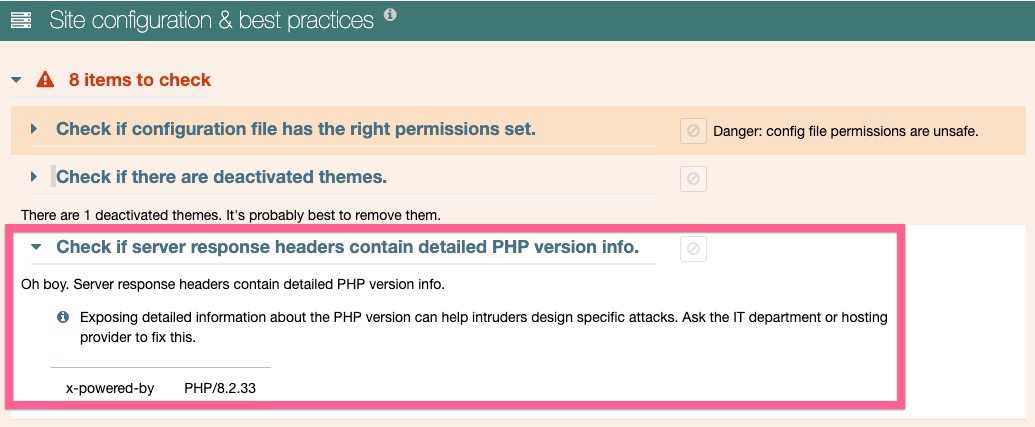
The Watchful Vulnerability Scanner includes this test as part of its Site configuration & best practices checks.
Watchful examines the HTTP response headers returned by your site and identifies detailed PHP version information such as:
x-powered-by: PHP/8.2.33
When PHP version information is detected, the site is flagged so you can investigate the server configuration and apply one of the remedies described above.
This makes it easier to identify sites exposing unnecessary server information without manually checking every site’s response headers.
Keep PHP updated
Removing the PHP version from your HTTP headers is a useful server-hardening step, but it should not be confused with fixing PHP vulnerabilities.
An outdated PHP release remains outdated whether its version number is visible or hidden.
Always use a currently supported PHP version and install security updates provided by your hosting company or server administrator.
Hiding detailed version information simply reduces unnecessary information disclosure and adds another small layer to your overall WordPress security strategy.



0 Comments