How to hide the PHP version from your WordPress site headers
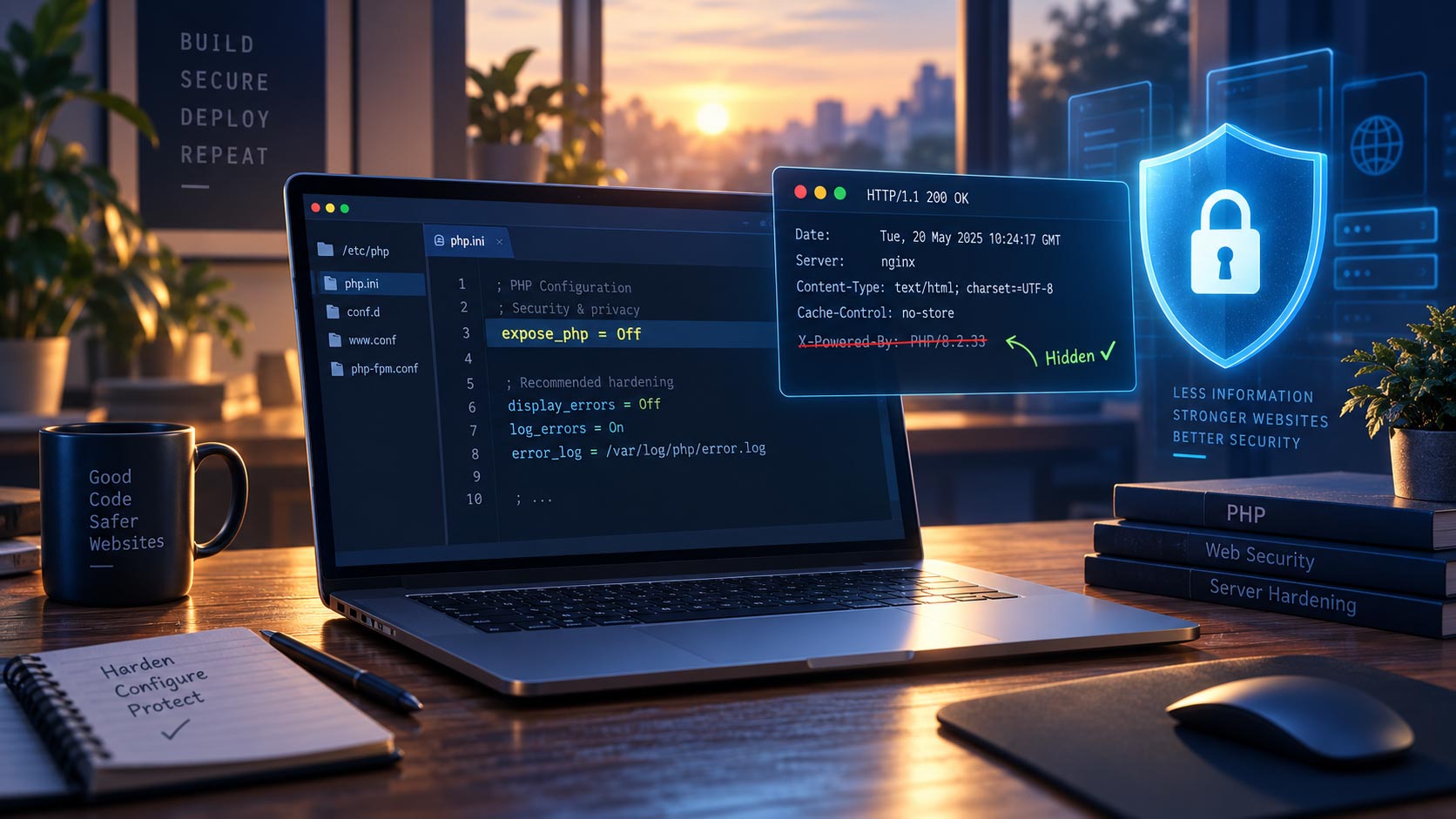
PHP is the programming language that powers WordPress. Depending on the configuration of your web server, the version of PHP running on your website may be included in its HTTP response headers.
For example, a server may return a header like this:
X-Powered-By: PHP/8.2.33
These headers are normally invisible when browsing your website, but they can easily be viewed using a browser’s developer tools, command-line utilities or online website testing tools.
There is generally no reason for visitors to your website to know the exact version of PHP installed on your server. Fortunately, this information can usually be removed with a simple server configuration change.
Why hide the PHP version?
Displaying the PHP version does not create a vulnerability by itself. However, it provides unnecessary information about your server.
If your server is running a version of PHP with a known vulnerability, publishing the exact version can make it easier for an attacker to identify potentially useful exploits.
Removing this information is therefore a simple server-hardening measure.
It is important to remember that hiding the PHP version is not a substitute for keeping PHP updated. An outdated version remains vulnerable whether or not its version number is visible.
There are three common ways to prevent the PHP version from appearing in your website’s HTTP response headers.
1. Disable expose_php in the PHP configuration
PHP includes a configuration setting called expose_php. When enabled, PHP can identify itself, including its version, in the HTTP headers returned by the server.
The preferred solution is to disable this setting:
expose_php = Off
On a typical cPanel server:
- Log in to cPanel.
- Open Software → MultiPHP INI Editor.
- Select the domain you want to configure.
- Look for the
expose_phpsetting. - If it is available, set it to:
expose_php = Off - Save the changes.
The PHP settings available to individual cPanel users depend on the server configuration and permissions provided by the hosting company.
What if expose_php is not available in cPanel?
This is common on shared hosting.
expose_php is a PHP configuration-level setting, and some hosting companies do not allow individual cPanel users to change it.
If the option is not available in the MultiPHP INI Editor, you can either remove the header using .htaccess or contact your web host and ask them to disable it for you.
2. Remove the PHP header using .htaccess
If you cannot change expose_php, Apache can instead remove the X-Powered-By response header before it is sent to visitors.
This approach is particularly useful on shared cPanel hosting where the PHP configuration is controlled by the hosting provider.
To remove the header:
- Log in to cPanel.
- Open File Manager.
- Navigate to the document root of your WordPress website. This is commonly:
public_html - Locate the
.htaccessfile. If you cannot see it, enable Show Hidden Files in the File Manager settings. - Make a backup of the
.htaccessfile before making any changes. - Add the following lines:
<IfModule mod_headers.c>
Header unset X-Powered-By
Header always unset X-Powered-By</IfModule> - Save the file and reload your website.
The <IfModule> wrapper ensures that these instructions are only processed when Apache’s headers module is available.
This method does not disable PHP’s expose_php setting. Instead, Apache removes the X-Powered-By header before the response reaches the visitor.
For that reason, changing expose_php is the preferred solution when you have access to the PHP configuration.
3. Ask your web host to remove the PHP version
On many shared and managed hosting accounts, customers do not have access to the server-level PHP configuration required to change expose_php.
In this situation, your hosting provider can usually make the change for you.
When contacting your web host:
- Tell them that your website is returning detailed PHP version information in the
X-Powered-ByHTTP response header. - Provide an example if necessary:
X-Powered-By: PHP/8.2.33 - Ask them to disable PHP’s
expose_phpsetting for your account, domain or server. - If they cannot change
expose_php, ask whether they can remove theX-Powered-Byresponse header at the web-server or proxy level. - After they confirm the change, check your website again to make sure the PHP version is no longer being returned.
This is often the easiest option for managed or shared hosting accounts where server configuration is controlled entirely by the hosting company.
Check that the PHP version has been removed
After making any of these changes, check your website’s HTTP response headers.
One simple way to do this from a terminal is:
curl -I https://example.com
Replace example.com with your own domain.
Before making the change, you may see something similar to:
X-Powered-By: PHP/8.2.33
After applying the change, the X-Powered-By header should no longer appear.
You can also check HTTP response headers using your browser’s developer tools or an online header testing service.
Watchful checks for exposed PHP version information
You do not need to manually inspect every WordPress website you manage.
This check is included in the Watchful vulnerability scanner as part of the Site configuration & best practices checks.
Watchful examines your site’s HTTP response headers and alerts you when detailed PHP version information is being exposed.
For example, Watchful can detect a response header such as:
x-powered-by: PHP/8.2.33
When this information is found, the site is flagged so that you can disable expose_php, remove the header using .htaccess, or contact your hosting provider.
This makes it easy to identify WordPress sites that are exposing unnecessary PHP information without manually testing the response headers of each site.
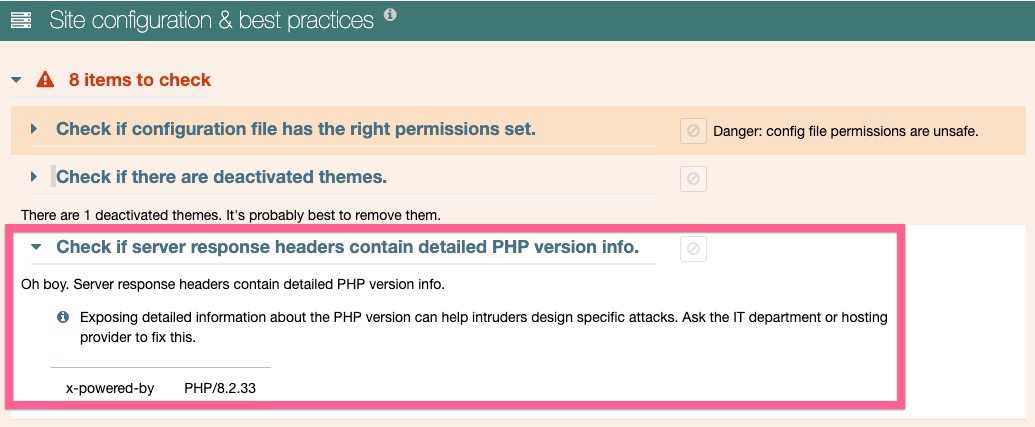
Watchful detects detailed PHP version information exposed in server response headers.
Keep PHP updated
Removing detailed PHP version information is a useful security-hardening step, but it does not make an insecure PHP installation secure.
Always run a currently supported PHP version and install security updates provided by your hosting company or server administrator.
Hiding the version simply avoids providing unnecessary information about the technology running your WordPress website, and mitigating targetted attacks based on the specific PHP versions.


0 Comments