Why did my website’s IP address change?
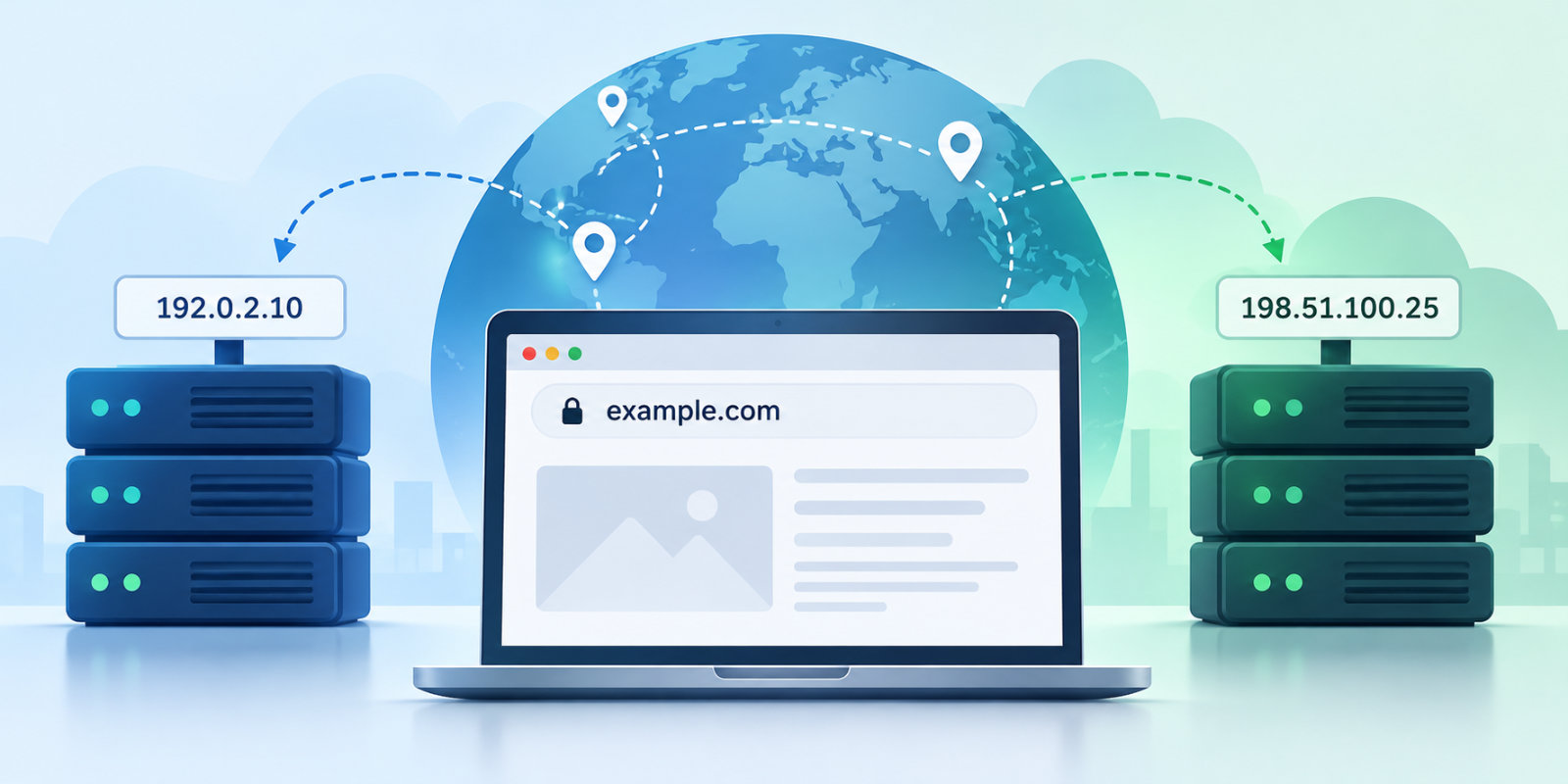
Your website’s IP address identifies the server or network endpoint that visitors connect to when accessing your domain. Although this address often remains stable, it can change when you move your website to a new hosting provider, update your DNS configuration, or use a service such as Cloudflare.
Most IP address changes are harmless and expected. However, unexpected or repeated changes can indicate a DNS configuration problem or, in some cases, unauthorized changes to your domain settings.
This guide explains why website IP addresses change and how to investigate and resolve unexpected changes.
Common reasons for website IP address changes
There are several legitimate reasons why your website’s IP address might change.
Moving to a new hosting provider
When you migrate your website to a new server or hosting provider, its IP address will usually change.
During the migration, DNS records may temporarily point to both the old and new servers while updated records propagate.
Using a content delivery network (CDN)
Services such as Cloudflare and Sucuri CloudProxy route website traffic through their own networks.
When you enable one of these services, visitors may connect to the service’s IP addresses rather than directly to your hosting server.
These addresses may change as the provider manages traffic across its network.
Updating your DNS configuration
Changes to your domain’s DNS records can affect which IP address is returned when someone looks up your website.
For example, changes to your A, AAAA, or CNAME records may cause your domain to resolve to a different server or service.
Using dynamic IP addresses
Some hosting environments use dynamic IP addresses that change periodically.
Services such as No-IP can automatically update DNS records when the server’s IP address changes.
Enabling HTTPS or changing hosting services
Installing an SSL certificate does not normally change your website’s IP address. However, enabling HTTPS may involve moving your website to another server, activating a proxy, or changing your hosting configuration.
These related changes can result in a new IP address.
How to troubleshoot an unexpected IP address change
If your website’s IP address changes unexpectedly, follow these steps to determine whether the change is legitimate.
1. Check your website’s current IP address
Start by checking which IP address your domain currently resolves to.
You can use an online DNS lookup tool such as Google Admin Toolbox Dig or run a command in your terminal.
For example:
dig example.com A +shortReplace example.com with your website’s domain name.
If your website supports IPv6, check its AAAA records as well:
dig example.com AAAA +shortCompare the results with the IP address provided by your hosting company.
If you use Cloudflare or another CDN, the returned IP address may belong to that service rather than your hosting server.
2. Review recent hosting changes
Log into your hosting control panel and check whether any recent changes could explain the new IP address.
Look for:
- Server migrations or hosting upgrades
- Changes to your hosting plan
- Changes to your CDN or proxy configuration
- Updates to your DNS records
- Changes to your server’s network configuration
If you recently moved your website, confirm that the new IP address belongs to your current hosting provider.
3. Verify your domain registration and name servers
Log into your domain registrar and review the domain’s configuration.
Confirm that:
- Your domain registration has not expired.
- Your name servers point to the correct DNS provider.
- Your domain contact information has not been changed without authorization.
- Your DNS records point to the expected hosting infrastructure.
Unexpected changes to name servers or DNS records may indicate a configuration mistake or unauthorized access.
If you discover changes you did not authorize, contact your domain registrar immediately and secure your account.
4. Check for conflicting DNS records
A domain can have multiple DNS records, including multiple A or AAAA records.
This is not necessarily a problem. Multiple records are often used intentionally for load balancing, redundancy, or other hosting configurations.
However, incorrect or outdated records can cause your domain to resolve to an unexpected IP address.
Review your DNS configuration and:
- Identify the authoritative DNS provider for your domain.
- Check that all relevant records contain the intended values.
- Remove obsolete records that point to servers you no longer use.
- Confirm that multiple IP addresses are intentional.
Avoid deleting records simply because multiple IP addresses appear. Some hosting and CDN services require them.
5. Check your CDN or DNS service
If you use Cloudflare, Sucuri CloudProxy, No-IP, or another DNS-based service, review its configuration.
These services may legitimately return different IP addresses over time.
Check whether:
- Your domain is configured to use the service.
- Proxying or traffic routing is enabled.
- Recent configuration changes explain the new address.
- The reported addresses belong to the provider.
If the changes continue and you cannot explain them, contact the provider to confirm whether the behavior is expected.
6. Check for DNS propagation
After changing DNS records, different DNS resolvers may temporarily return different IP addresses.
You can compare the results from multiple DNS resolvers using a DNS propagation checker such as DNSChecker.
If some locations return the previous IP address and others return the new address, the changes may still be propagating or cached.
Allow time for DNS caches to expire based on the configured time-to-live (TTL) values.
7. Investigate persistent or unexplained changes
If your website’s IP address continues to change and you cannot identify a legitimate cause, investigate further.
Contact your hosting provider and DNS provider to verify that the observed addresses are expected.
Also consider:
- Reviewing recent DNS changes and account activity
- Enabling two-factor authentication on your registrar and hosting accounts
- Changing passwords if unauthorized access is suspected
- Checking whether your website redirects visitors unexpectedly
- Reviewing your domain’s DNS security settings
Unexpected IP address changes do not necessarily indicate a security breach, but unexplained changes should not be ignored.
What if my website’s IP address keeps changing?
Some websites legitimately resolve to different IP addresses, particularly when using CDNs, load balancers, or dynamic DNS services.
If you have confirmed that the changes are expected, no corrective action may be necessary.
However, if the changes result in downtime, visitors reaching the wrong server, or other website problems, contact your hosting or DNS provider to investigate.
Monitoring IP address changes with Watchful
Watchful monitors the IP addresses associated with your WordPress and Joomla! websites and can notify you when a change is detected.
These notifications help you identify hosting changes and investigate unexpected DNS behavior.



0 Comments