How to allowlist IP addresses
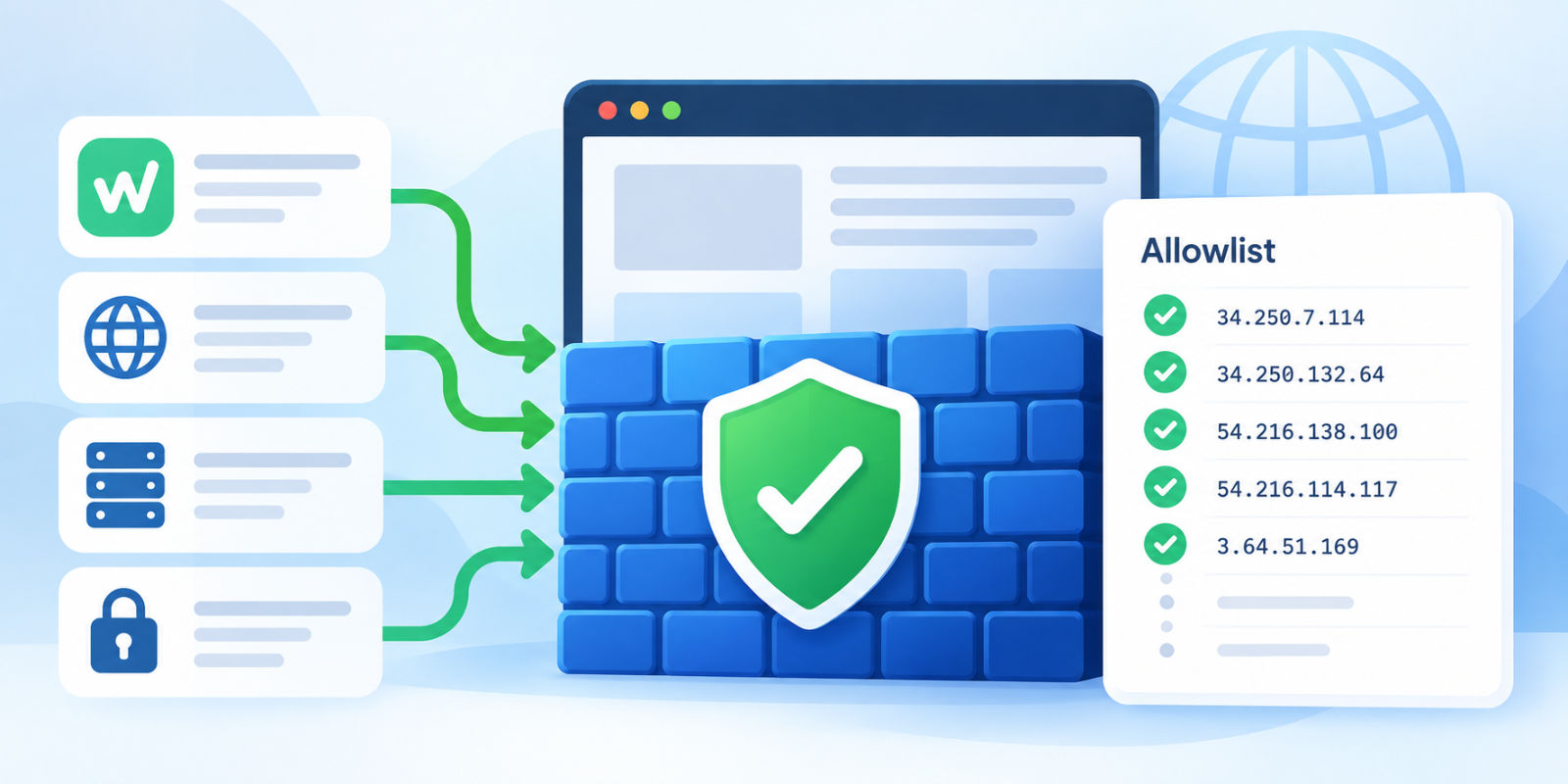
Website firewalls help protect your website from malicious traffic, but they can sometimes block legitimate visitors, monitoring services, and website management tools.
Allowlisting an IP address tells your firewall to make an exception for requests originating from a trusted source.
This guide explains how to allowlist IP addresses in Cloudflare, Sucuri, WHM, server firewalls, and security plugins or extensions for WordPress and Joomla!.
Before you begin
Before changing your firewall settings, identify the IP addresses you need to allowlist.
If you are configuring access for Watchful, use the current list of Watchful IP addresses.
You should also identify which security system is blocking the connection. Your website may have several layers of protection, including:
- A cloud-based web application firewall (WAF), such as Cloudflare or Sucuri.
- A server firewall managed by your hosting provider.
- A WordPress security plugin, such as Wordfence.
- A Joomla! security extension, such as Admin Tools.
Only add IP addresses that you trust. Whenever possible, create an exception for the specific rule or service causing the problem instead of disabling your firewall or bypassing all security checks.
Allowlist IP addresses in Cloudflare
Cloudflare allows you to create custom security rules that identify trusted IP addresses and exempt their requests from selected security checks.
Step 1: Create an IP list
If you have multiple IP addresses to allowlist, we recommend creating a reusable IP list.
- Sign in to your Cloudflare dashboard.
- Open your account’s
Settings. - Navigate to
Lists. - Select
Create new list. - Enter a descriptive name, such as
watchful_ips. - Choose
IPas the content type. - Create the list.
- Select
Add itemsand enter the trusted IP addresses. - Save the list.
Cloudflare IP lists can be reused across multiple websites in the same account.
When an IP address changes, you can update the list without editing every firewall rule that references it.
Step 2: Create a firewall exception
- In Cloudflare, select the website you want to configure.
- Navigate to
Security > Security rules. - Select
Create ruleand chooseCustom rules. - Enter a descriptive name, such as
Allow Watchful. - Open the expression editor.
- Enter the following expression, replacing
watchful_ipswith the name of your IP list:
ip.src in $watchful_ips- Under
Then take action, selectSkip. - Select only the security features responsible for blocking the trusted requests.
- Position the rule before other applicable custom rules that could block the traffic.
- Select
Deploy.
Depending on your configuration, you may need to skip selected WAF Managed Rules, rate limiting rules, or Super Bot Fight Mode.
Avoid skipping all security components unless you have established that doing so is necessary.
Cloudflare Bot Fight Mode
Cloudflare’s standard Bot Fight Mode cannot be bypassed using custom WAF rules.
If Bot Fight Mode is blocking a legitimate service, you can disable that feature or use a Cloudflare plan supporting Super Bot Fight Mode, which allows more granular exceptions.
Before changing bot protection, review your Cloudflare Security Events to confirm which feature is responsible for blocking the request.
For additional information, see Cloudflare’s documentation on security feature interoperability.
Allowlist IP addresses in Sucuri
If your website uses the Sucuri Website Firewall, you can add trusted IP addresses through its access control settings.
- Sign in to your Sucuri dashboard.
- Select the website you want to configure.
- Open
Access Control. - Select
Whitelist IP Addresses. - Enter the IP address you want to allowlist.
- Select the permanent option if you want the exception to remain in effect.
- Save the change.
- Repeat for any additional trusted IP addresses.
Once saved, the allowlisted addresses should no longer be blocked by the applicable Sucuri firewall restrictions.
If requests are still blocked, review your Sucuri firewall logs or contact Sucuri support.
Allowlist IP addresses in a server firewall
Some hosting providers restrict access using a server-level firewall.
If you have a managed hosting account, contact your hosting provider and ask them to allowlist your trusted IP addresses.
If you manage your own server, you may be able to update the firewall directly.
ConfigServer Security & Firewall (CSF)
If your Linux server uses CSF, you can add trusted addresses to the CSF allowlist.
- Connect to your server using SSH with an account that has administrative privileges.
- Open the CSF allowlist file:
sudo nano /etc/csf/csf.allow- Add each trusted IP address on a separate line.
- Save the file.
- Reload the firewall:
sudo csf -rThe new rules should take effect after the firewall reloads.
Before editing server firewall rules, make sure you have a way to recover access if the configuration causes unexpected problems.
Allowlisting through WHM
If your server uses WHM and has ConfigServer Security & Firewall installed:
- Sign in to WHM.
- Search for
firewall. - Select
ConfigServer Security & Firewall. - Locate the
csf - Quick Actionssection. - Enter the trusted IP address in the
Allow IP addressfield. - Select
Quick Allow. - Repeat for any additional addresses.
- Restart or reload CSF if prompted.
If the CSF interface is unavailable, contact your hosting provider to determine which firewall is installed.
Other server firewalls
Other Linux servers may use UFW, firewalld, nftables, or a hosting-specific firewall.
The configuration process depends on the firewall software and your server environment.
When creating rules, restrict exceptions to the services and ports that require access. For example, a website management service may only need inbound HTTP and HTTPS access.
Avoid creating unrestricted rules that expose unrelated server services.
Allowlist IP addresses in WordPress security plugins
WordPress security plugins can block legitimate requests even when your server and cloud firewall allow them.
The allowlist settings vary depending on the plugin.
Wordfence
- Sign in to your WordPress administrator dashboard.
- Navigate to
Wordfence > All Options. - Expand the firewall options.
- Locate the field for IP addresses that bypass Wordfence firewall rules.
- Add the trusted IP addresses.
- Save your changes.
Check your Wordfence firewall logs if you need to identify the IP address associated with a blocked request.
Defender Security
- Sign in to your WordPress administrator dashboard.
- Navigate to
Defender > Firewall. - Open the IP banning or allowlist settings.
- Add the trusted IP addresses.
- Save your changes.
The exact menu labels may vary depending on your Defender version.
Other WordPress security plugins
Other security plugins, including CleanTalk and BBQ Pro, provide ways to allowlist trusted IP addresses.
Look for options labeled Allowlist, Whitelist, Trusted IPs, or similar in the plugin’s firewall settings.
Some plugins allow you to exclude IP addresses from specific security checks rather than bypassing the entire firewall. Prefer a narrowly scoped exception when one is available.
Allowlist IP addresses in Joomla! security extensions
Joomla! security extensions can also block legitimate automated requests.
If your website uses a security extension, check its firewall settings and logs for the blocked IP addresses.
Admin Tools
If you use Akeeba Admin Tools:
- Sign in to your Joomla! administrator dashboard.
- Open
Components > Admin Tools. - Navigate to the Web Application Firewall settings.
- Locate
Configure Exceptions from Blocking. - Add the trusted IP addresses using the appropriate exception settings.
- Save your changes.
RSFirewall
If you use RSFirewall:
- Sign in to your Joomla! administrator dashboard.
- Open
Components > RSFirewall. - Locate the
Blacklist/Whitelistsettings. - Add the trusted IP addresses to the whitelist.
- Save your changes.
Other Joomla! security extensions
Other extensions, including Securitycheck and OSE Anti-Hacker, also offer IP access controls.
Check your extension’s documentation for the appropriate allowlist configuration.
Menu locations may vary by extension version.
What about user-agent allowlisting?
Some security tools identify automated requests using HTTP user-agent strings.
If your hosting provider or firewall is blocking a legitimate service based on its user agent, you may need to create an exception.
However, IP address allowlisting is generally preferable because user-agent strings can be imitated.
If you need to allowlist a user agent, consult your firewall documentation or hosting provider. Avoid granting unrestricted access based solely on a user-agent string.
For the user agents used by Watchful, see Allowlist Watchful IP addresses and user agents.
Test your firewall configuration
After creating an allowlist rule, test the affected service or connection.
- Repeat the operation that was previously blocked.
- Confirm that the connection now succeeds.
- Review your firewall logs to check for additional blocks or challenges.
- Verify that unrelated firewall protections remain enabled.
If the connection still fails, check whether another security layer is blocking the request.
For example, a Cloudflare exception will not override a separate firewall rule configured on your hosting server or within your WordPress or Joomla! website.
Keep your allowlist up to date
The IP addresses used by external services may change over time.
Periodically review your allowlist and remove addresses that are no longer required.
Where possible, use a trusted provider’s published IP list to maintain your firewall configuration.
Watchful publishes its current IPv4 address list at: https://app.watchful.net/ip-v4.txt
If you use Watchful to manage your websites, see Allowlist Watchful IP addresses and user agents for additional information about connection requirements and troubleshooting.



0 Comments